Find Text in Word Document Action
Find Text in Word Document Action finds and selects text in a Word document that matches the defined criteria. It searches for specified text and can apply additional search criteria such as highlight color, font color, font size or style. The result (whether the text was found) is stored in an output variable.
Appearance
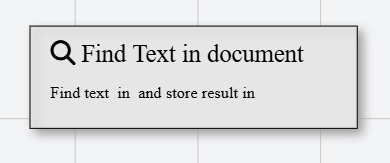
In Talos, Find Text in Word Document Action appears as a standard rectangular node with a magnifying glass icon.
Properties
As all Actions, Find Text in Word Document Action has a few unique properties that are essential for its functionality.
Common properties
Common properties inherited from Action.
By customizing this property, you can differentiate between same type of actions.
This property is Read only and it is not customizable
See more about Talos Scripting language & Expressions
This property supports expressions. You can use variable references and string expressions to dynamically resolve the search text at runtime.
Examples
Assuming a declared String variable with name searchTerm.
Introduction
${searchTerm}
Chapter ${searchTerm}: Summary
Dear Sir/Madam
Available criteria options:
- Highlight Color — Match text by highlight color
- Font Color — Match text by font color
- Font Size — Not supported
- Style — Not supported