What are Actions?
Actions are the fundamental building blocks of workflow automation in Robotic Process Automation (RPA). In Talos, Actions represent individual tasks or steps that are executed sequentially or conditionally to automate business processes. Each Action can perform a specific operation, such as interacting with applications, processing data, or making decisions based on predefined rules. By combining multiple Actions, you can design comprehensive RPA workflows that streamline repetitive tasks, reduce manual effort, and improve efficiency across your organization.
Appearance
Actions are visually represented using flowchart symbols that adhere to the ISO 5807:1985 standard for process charting. This standardized notation ensures clarity and consistency, making it easy to understand the sequence, decision points, and flow of each automated process within Talos.
Start / End
Every workflow must have exactly one Start action and at least one End action.
| Icon | Name | Description |
|---|---|---|
 | Start | Marks the entry point of a workflow. Every workflow begins with a Start Action. |
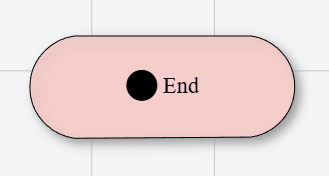 | End | Marks the termination point of a workflow. No actions can follow an End Action. |
Decision
Decision points allow the workflow to branch into different paths based on a boolean condition or expression.
| Icon | Name | Description |
|---|---|---|
 | Decision | Represents a branching point where the workflow can follow different paths based on conditions. Examples include Branch Action. |
Loop Structures
Loops allow you to repeat a sequence of actions multiple times, either for a fixed count or for each item in a collection.
| Icon | Name | Description |
|---|---|---|
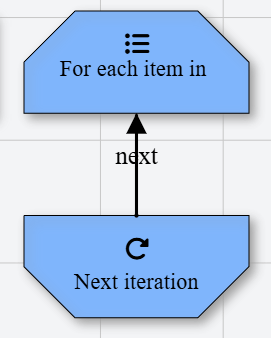 | Loop Block | Indicates a loop structure, such as For Each or For Loop. |
 | Loop End | Indicates the end of a loop structure. The workflow returns to the Loop Start if the loop condition is met. |
Process & Tasks
The majority of actions in Talos are process tasks that perform specific operations.
| Icon | Name | Description |
|---|---|---|
 | Process | Represents a generic operation or task, such as Clicking an element or Setting a Variable. |
 | Logging | Actions that output information to the console or log file, such as Log Message. |
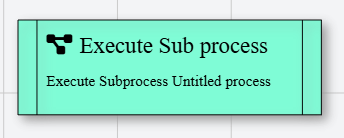 | Subflow | Denotes an action that interacts with external systems or runs nested workflows, such as Run Subflow. |
Specialized Actions
These symbols represent specific types of interaction or flow control.
| Icon | Name | Description |
|---|---|---|
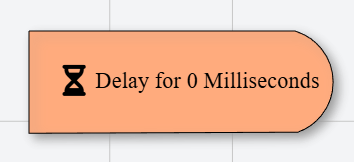 | Delay | Represents a pause or wait period in the workflow, allowing for timed delays between actions. |
Connections
All actions are interconnectible with each other, except for the End Action. The End Action can only have incoming connections. By connecting actions, you define the execution flow of the workflow. Most actions can have an arbitrary number of incoming connections, but only two outgoing connections:
-
Next action
Indicates the next action to be executed upon success. -
On Error
Indicates the next action to be executed if an error occurs. See more about Exception handling.
Exceptions to this are conditional actions (such as Branch Action) and looping actions (such as For Each Loop, For Loop, etc.) which can have more than 2 outgoing connections.
Properties
Action properties provide the necessary configuration data for an action to execute. While each action has a unique set of properties, all actions share these common fields:
Customizing this helps distinguish between multiple actions of the same type (e.g., "Click Login Button" vs "Click Submit").
This property is Read only and it is not customizable