Add Formula To Cell
Add Formula To Cell Action is a spreadsheet action that enables the user to insert a formula into a specific cell of an open Excel (.xlsx) variable file. The formula is written to the cell but not evaluated or applied at the time of insertion.
A typical use case, is dynamically populating formula logic during an automation run.
Appearance
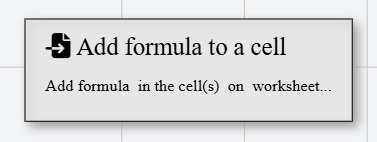
In Talos, Add Formula To Cell appears as a standard rectangular node with a file-import icon, indicating an operation that writes content into an existing Excel file.
Properties
As with all Actions, Add Formula To Cell Action has a set of unique properties required for its functionality.
Common properties
Common properties inherited from Action.
By customizing this property, you can differentiate between same-type actions.
This property is Read only and it is not customizable
This must refer to a variable that holds an already-opened Excel document. The variable is typically populated by a preceding Open Spreadsheet action.
Ensure the file is open before this action executes. Referencing a closed or uninitialized variable will result in a runtime error.
Provide the exact worksheet (tab) name as it appears in the Excel file. This value is case-sensitive.
Examples
Sheet1
Summary
Q3 Report
Accepts a single cell reference, a comma-separated list of cells, or a range notation.
Examples
// Single cell
A1

// Comma-separated list
A1, B2, C3

// Range
A1:A10
When targeting multiple cells, the same formula will be inserted into each specified cell.
Provide a valid Excel formula string. The formula should begin with = as it would appear in Excel.
The formula is inserted but not applied. It will not be evaluated until the file is opened or recalculated in a spreadsheet application.
Examples
=SUM(A1:A10)
=IF(B2>100, "High", "Low")
=CONCATENATE(C1, " ", D1)
=TODAY()